
Fix Missing vCenter Certificate Data in VMware Aria Operations 8.17.1
We wanted to monitor certificate expiration in VMware Aria Operations and eventually send an email notification when a certificate had 30 days or less remaining. Before creating the alert, however, we noticed that the built-in certificate dashboard displayed ESXi certificates correctly while the vCenter certificate section was empty.
This article documents the troubleshooting process, the relevant command outputs, the root cause, and the final fix for an environment running VMware Aria Operations 8.17.1 with vCenter Server 8.0 Update 3.
Environment
- VMware Aria Operations 8.17.1, Advanced Edition
- VMware vCenter Server 8.0 Update 3
- VMware Infrastructure Health adapter enabled
- ESXi certificate information was already visible
- vCenter root certificate information was missing
Problem
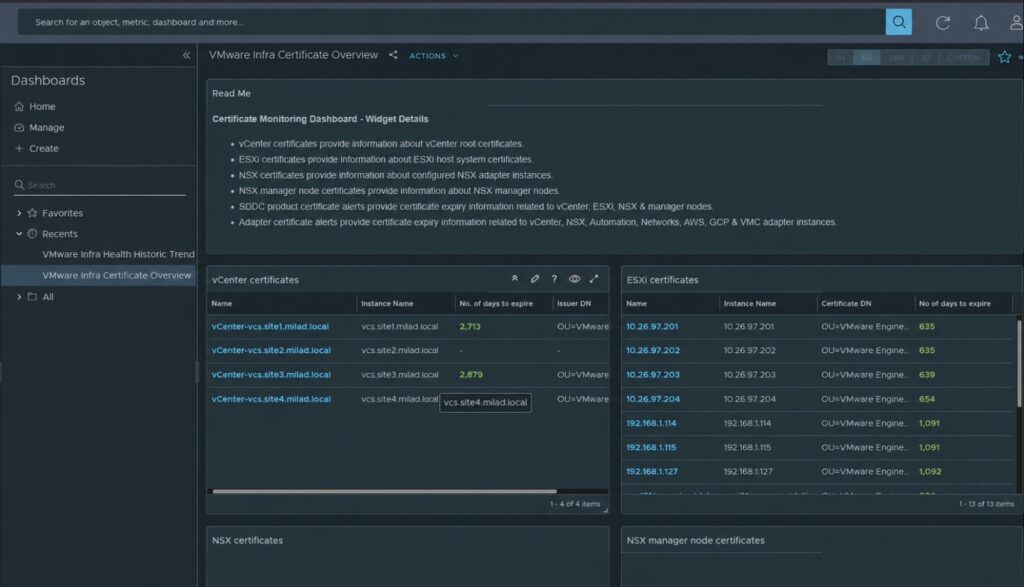
In Visualize > Dashboards > VMware Infrastructure Health > VMware Infra Certificate Overview, the ESXi certificate widget displayed certificate names and the number of days remaining. The vCenter certificate widget, however, returned no data.
The predefined vCenter view expected the following metric on the vCenter App object:
CERTIFICATE_SUMMARY:vCenter Root Certificate|NO_OF_DAYS_TO_EXPIRE
When we opened the affected vCenter App object and searched under Metrics for Certificate Summary, Aria Operations displayed:
No metrics to select.This confirmed that the problem was not the dashboard or view configuration. The metric itself had not been published for the vCenter object.
Step 1: Verify the Correct Adapter and Collector
VMware Infrastructure Health adapter instances can run on different analytics nodes or cloud proxies. Searching the logs on the wrong node may return no results even though the vCenter is being collected successfully elsewhere.
First, identify which collector is assigned to the affected vCenter account. Then inspect the VMware Infrastructure Health logs on that collector:
/storage/log/vcops/log/adapters/VMwareInfraHealthAdapter/
/storage/log/vcops/log/collector.log
Step 2: Rule Out a Permission Problem
The vCenter service account was already a member of the required administrative groups. To verify that it could read the certificate-management API, we logged in with the same account and executed the following request from the vSphere Developer Center API Explorer:
GET /api/vcenter/certificate-management/vcenter/tls
The request returned the vCenter TLS certificate data successfully. There were also no recurring 401 Unauthorized or 403 Forbidden messages in the Aria Operations logs. Therefore, changing the service account or assigning additional permissions was not justified.
Step 3: Inspect the VMware Infrastructure Health Logs
On the collector assigned to the affected vCenter account, we searched the current and rotated collector logs for the vCenter FQDN, certificate-management requests, the legacy vmon endpoint, and relevant HTTP errors:
grep -RniE 'vcs\.site2\.milad\.local|vmon/service|certificate-management|403 Forbidden|503 Service Unavailable' \
/storage/log/vcops/log/collector.log* | tail -n 100
Replace vcs.site2.milad.local with the affected vCenter FQDN and escape each dot as \.. Using the complete strings 403 Forbidden and 503 Service Unavailable prevents false matches against timestamps or elapsed-time values that merely contain the digits 403 or 503.
The collector log showed the following error every collection cycle:
com.vmware.adapter3.vmwareinfrahealth.util.RestAPISession.getVmonApi - Failed:
URL: https://<vcenter-fqdn>/rest/appliance/vmon/service
HTTP error code: 503 Service Unavailable
Another legacy appliance endpoint also returned an error:
com.vmware.adapter3.vmwareinfrahealth.util.RestAPISession.getVmonApi - Failed:
URL: https://<vcenter-fqdn>/rest/appliance/techpreview/ntp
HTTP error code: 404 Not Found
The important error for this investigation was the repeated 503 Service Unavailable response from /rest/appliance/vmon/service. The NTP 404 was a separate legacy-endpoint issue and was not required to restore certificate visibility.
Step 4: Check the vCenter Services and Version
We connected to the vCenter Server Appliance through SSH and checked the relevant services:
service-control --status vmonapi
service-control --status vmware-vapi-endpoint
vpxd -v
The output showed:
Stopped:
 vmonapi

Running:
 vmware-vapi-endpoint

VMware VirtualCenter 8.0.3 build-24022515
The main vAPI endpoint was healthy, but the separate vmonapi provider used by Aria Operations was stopped.
Root Cause
Starting with vCenter Server 8.0 Update 3, the vCenter Service Lifecycle Management API, also known as vmonapi, is deprecated and is not active by default. It must be activated manually when an external integration still depends on it.
In this environment, VMware Aria Operations 8.17.1 was still requesting the legacy endpoint:
/rest/appliance/vmon/service
Because vmonapi was stopped, the request returned HTTP 503 and the VMware Infrastructure Health collection for the vCenter application was incomplete. ESXi certificate data could still appear because ESXi and vCenter certificate information are collected against different resource types and collection paths.
Resolution
1. Start vmonapi
Start the service on the vCenter Server Appliance:
service-control --start vmonapi
service-control --status vmonapi
Verify its detailed state:
vmon-cli -s vmonapiThe service was now running and healthy, but its startup type was still manual:
Name: vmonapi
Starttype: MANUAL
RunState: STARTED
RunAsUser: vmonapi
HealthState: HEALTHY
2. Configure vmonapi to Start Automatically
A manual start does not persist across a vCenter reboot. Because this Aria Operations deployment depends on the legacy API, we changed the service startup type to AUTOMATIC:
vmon-cli -U vmonapi -S AUTOMATIC
vmon-cli -s vmonapi
The expected state is:
Name: vmonapi
Starttype: AUTOMATIC
RunState: STARTED
RunAsUser: vmonapi
HealthState: HEALTHY
Restarting all vCenter services or rebooting the appliance was not required.
3. Allow Aria Operations to Collect the Data
After vmonapi became healthy, we waited for the next VMware Infrastructure Health collection cycles. The missing vCenter certificate rows then started to appear in the VMware Infra Certificate Overview dashboard, including the number of days remaining before expiration.
If the data does not appear after several collection cycles, stop and start only the relevant VMware Infrastructure Health adapter instance from Operations > Configurations > Inventory Management, then wait for two additional collection cycles. Do not immediately delete or recreate the adapter before verifying the vCenter-side API.
Verification
Confirm the following:
vmon-cli -s vmonapireportsAUTOMATIC,STARTED, andHEALTHY.- New
/rest/appliance/vmon/servicerequests no longer return HTTP 503 in the Aria Operations collector log. - The
vCenter Appobject contains theCERTIFICATE_SUMMARYmetric. - The vCenter certificate widget displays certificate information and the number of days remaining.
Rollback
To restore the vCenter 8.0 Update 3 default startup behavior:
vmon-cli -U vmonapi -S MANUALImportant Scope Limitation
The predefined vCenter certificate metric discussed in this article represents the vCenter root certificate. Restoring this metric does not automatically provide a complete inventory of every certificate in every VECS store, and the Security Token Service certificate requires separate consideration.
If the operational requirement is to alert on every vCenter certificate, combine the Aria Operations visibility with the native vCenter Certificate Status alarm and a separate STS certificate check.
Conclusion
The missing vCenter certificate information was not caused by the dashboard, the metric definition, or insufficient permissions. The root cause was a version-specific integration mismatch: vCenter 8.0 Update 3 leaves the deprecated vmonapi service inactive by default, while VMware Aria Operations 8.17.1 still calls that API through the VMware Infrastructure Health adapter.
Starting vmonapi and changing its startup type to AUTOMATIC restored vCenter certificate collection in Aria Operations.
Leave a Reply